We still remember the week HighLevel changed the calendar connection flow and suddenly half our community thought they had “broken” their account. The truth was simpler: the integration moved, the steps changed, and one tiny permission and user assignment detail started blocking setups for people who had done this a hundred times before.
In this guide, we’ll walk you through the updated method to connect Google Calendar to GoHighLevel, prevent double bookings, and fix the most common sync issues so you can start booking calls smoothly and focus on making money with AI instead of troubleshooting tech.
How the Google Calendar integration works now
HighLevel’s Google Calendar integration is designed to sync appointments, keep availability accurate, and reduce scheduling chaos, but the setup is now handled inside the sub-account Calendar Connections area rather than feeling like a one-time global toggle.
HighLevel also makes it clear that calendar integrations are tied to individual user profiles, which matters a lot if you run appointments for clients or a team because each user needs their own connection for reliable syncing.
Why this matters if you want to make money with AI
If you are building an AI automation agency, your calendar is the cash register. When appointments do not sync, you get double bookings, no-shows, and angry clients, and you lose trust fast.
We use this exact calendar foundation when we run database reactivation and AI plus SMS to turn old leads into booked appointments for a sales team to close, because the automation is only as good as the calendar it books into.
Step-by-step: connect Google Calendar to GoHighLevel
Follow these steps in order, because the new flow has two “gotchas” most tutorials skip: confirming your Google account is linked in integrations and making sure the right team member exists and is assigned properly.
Step 1: Confirm your Google account is connected in HighLevel Integrations
Go to your HighLevel settings and find Integrations, then connect your Google account if it is not already linked.
Step 2: Go to Calendar Settings and Connections in the right sub-account
HighLevel’s official flow starts inside your sub-account: Settings, Calendars (under Business Services), then the Connections tab.
Step 3: Click “Add New” and connect Google Calendar
On the Connections page, choose Google Calendar and authenticate with the Google account you want to sync, then approve the permission prompts.
Step 4: Allow full permissions (this is where most sync issues begin)
HighLevel specifically warns that you must accept all requested permissions and allow full calendar access, and that missing “writer” access can cause sync problems.
Step 5: Choose your linked calendar and add conflict calendars to prevent double bookings
HighLevel supports linking multiple Google Calendars, where one calendar is the “Linked Calendar” that receives bookings and others can be set as “Conflict Calendars” to stop overlaps.
Step 6: Save and test with a real booking
After saving, make one test booking through your HighLevel calendar to confirm the appointment appears in Google Calendar and that your availability updates correctly in HighLevel.
The team member trap: why admins still get stuck
One of the most confusing parts of the new experience is that being an admin does not always mean you are “assigned” correctly for calendar usage, especially in agency setups managing multiple sub-accounts, so you may need to ensure the correct user is set up as the team member who will own the calendar connection.
If you are building systems for clients, this is a big deal because a calendar connection that is “technically connected” but attached to the wrong user profile can silently break scheduling later.
Common problems and quick fixes (bookmark this)
If your calendar does not sync, HighLevel’s first recommendation is to check whether permissions were fully granted and then disconnect and re-integrate if needed.
If you do not see the right calendar list, HighLevel suggests logging out of all Google accounts and reconnecting with the correct account to avoid authenticating the wrong profile.
HighLevel also lists common reasons sync breaks over time: token expiry, a deleted calendar, or permissions being revoked after connection.
Advanced settings: what we recommend for most agencies
Most agencies should keep the recommended sync settings unless there is a specific reason to limit syncing direction, because your goal is to protect availability and reduce admin.
If you operate across multiple calendars, using conflict calendars is one of the simplest “pro” moves to stop double bookings without needing extra automation logic.
What to read next...
The ULTIMATE Guide to Go High Level Workflows
Build a Voice AI Agent in Go HighLevel (includes appointment booking and Google Calendar connection as part of the setup)
How to API Leads into HighLevel: A Step-by-Step Guide (useful when your appointments depend on lead flow)
Where The Instant AI Agency fits (only if you want the money path)
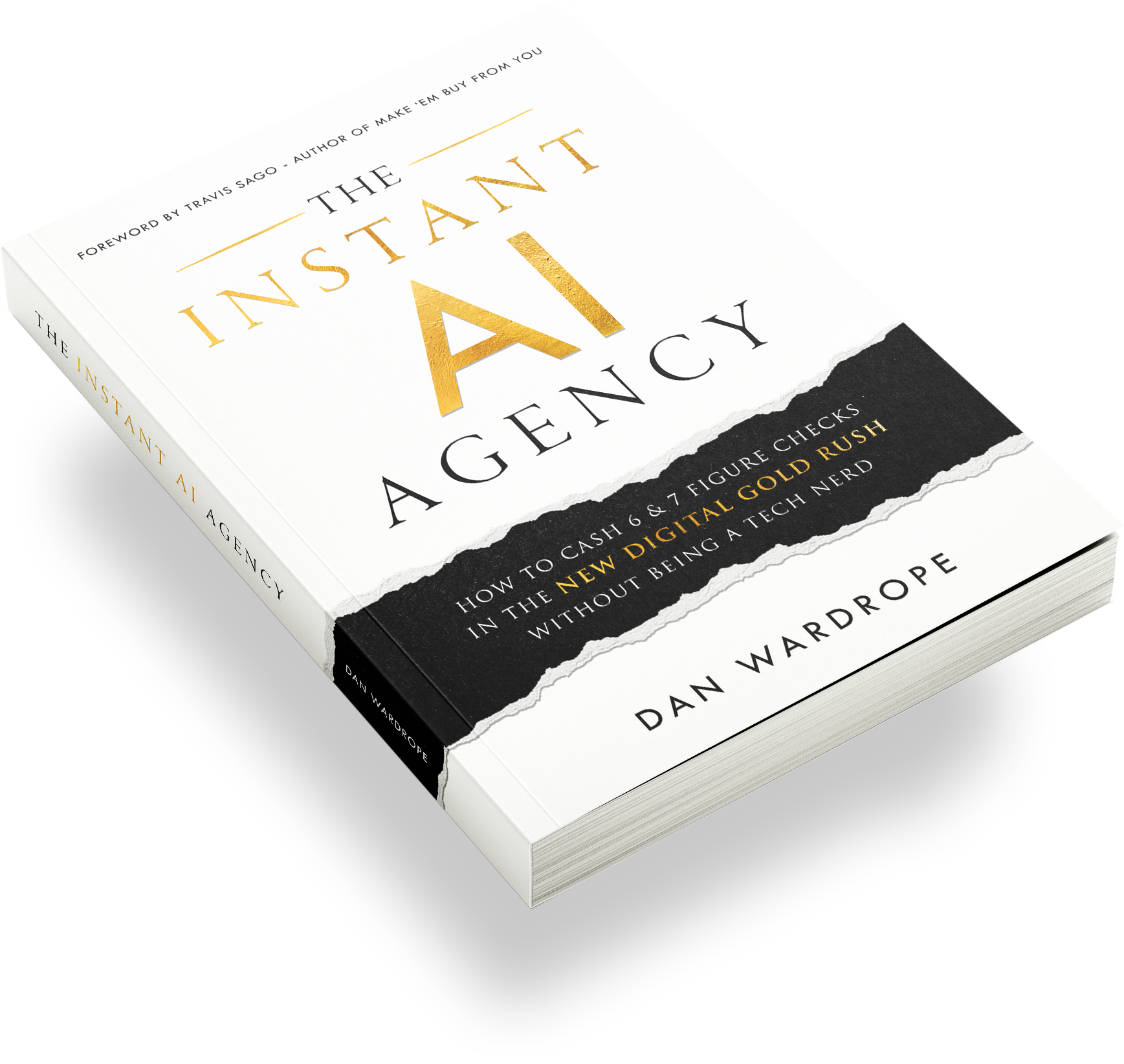
If you are not just trying to “connect a calendar” but you want the business model that turns booked appointments into real income, The Instant AI Agency is a helpful next step because it’s built around systems like database reactivation that depend on clean booking infrastructure.
You can check it out here:
Conclusion
If you follow the updated connection path inside HighLevel’s Calendar Connections, grant full permissions, and set conflict calendars properly, you will eliminate the biggest causes of missed syncs and double bookings.
What part of your HighLevel calendar setup is tripping you up right now: connecting the Google account, picking the right calendar, or stopping double bookings?